How to use Cyberlab Secure on Linux
-
Install nm-connection-editor
-
Ubuntu
sudo apt update && sudo apt install network-manager-gnome -
Fedora
sudo dnf install nm-connection-editor -
Arch
sudo pacman -S network-manager-applet
-
Note about compatibility
This should work on most distributions that use NetworkManager and wpa_supplicant. If you are using a different network manager, you may need to use a different tool to connect to Cyberlab Secure. Other distros are officially unsupported, but you can try to use the nm-connection-editor tool to connect to Cyberlab Secure.
-
Run nm-connection-editor
sudo nm-connection-editor -
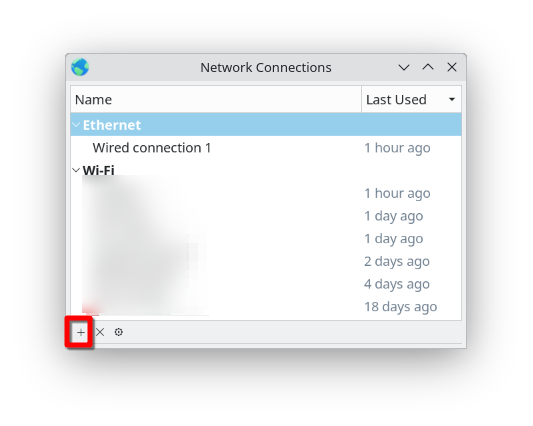
Click on the + button to add a new connection
-
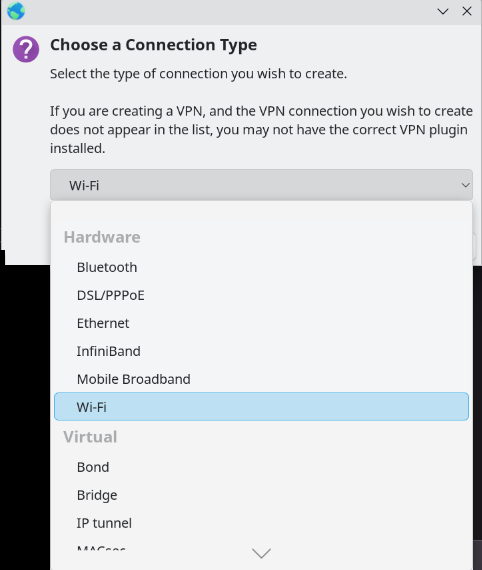
Select Wifi and click Create
-
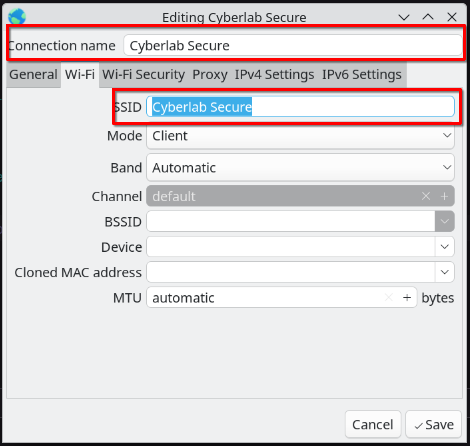
In the wifi tab fill in the following:
- Connection Name:
Cyberlab Secure - SSID:
Cyberlab Secure - Mode:
Client - Band:
Automatic - Device:
leave blank - MAC Address:
leave blank - Cloned MAC Address:
leave blank - MTU:
Automatic - Available to all users:
checked - All other fields can be left as default
- Connection Name:
-
In the wifi security tab fill in the following:
- Security:
WPA & WPA2 Enterprise - Authentication:
Protected EAP (PEAP) - Anonymous Identity:
leave blank - Domain:
leave blank - CA Certificate:
leave blank - Check box for No CA certificate is required
- PEAP Version:
Automatic - Inner Authentication: `MSCHAPv
- Username:
Your SSO Username - Password:
Your SSO Password 
- Security:
-
Select Save
-
Connect to the network The Cyberlab Secure network should be available where you normally connect to Wi-Fi. If not, run
nmcli connection up "Cyberlab Secure"
Troubleshooting
If you are having trouble connecting to the network, try the following steps:
-
Run
sudo journaclctl -u NetworkManagerto see if there are any errors -
Run
sudo journalctl -u wpa_supplicantto see if there are any errors -
Create ticket in infra help desk